K3s Single Node Installation Guide
This IVAAP Installation guide will walk you through all processes for installing IVAAP on a single server VM host running K3s.
Prerequisites
Confirm the following before extracting the package or running ivaap install:
FlexNet license server required
- An SLB FlexNet license server must already be running with your IVAAP entitlements loaded before you start the install.
- The installer probes
host:portduring install and will not continue if the server is unreachable or required features are missing. - Verify connectivity from the VM before install with
./ivaap license-check(see below). - The FlexNet license server should run on a separate host — your corporate FlexNet server or a dedicated VM. Running it on the same VM as IVAAP is not recommended.
- FlexNet license server is running, reachable from this VM, and IVAAP entitlements are loaded
- Host meets the Technical Data Sheet — dedicated Linux x86_64 VM; minimum CPU, RAM, and free disk under
/opt/ivaapand/var/lib/rancher(single-disk hosts: ≥ 200 GB free recommended, ≥ 150 GB minimum for Low/Medium Usage; ≥ 300 GB recommended, ≥ 200 GB minimum for High Usage; installer enforces a 120 GB hard floor below which install is refused); k3s 1.30+ (installed automatically if absent). The installer also enforces a dynamic floor that keeps the disk under k3s's 85 % image-garbage-collection line during install — see the TDS for details. -
sudoaccess for the user running the installer — required for k3s, Helm,/etc/hosts, and package dependencies. - Network — the VM can reach the FlexNet server on the license port (default 27000). Plan for ports 80, 443, and 6443 on the IVAAP host for browser and cluster access.
- Package downloaded and extracted on the VM — delivery zip from the SLB Software Download Center, extracted on a native Linux filesystem (not a WSL
/mnt/*path). - FQDN chosen — lowercase hostname for IVAAP ingress, no
http://prefix (e.g.ivaap.example.com). - Persistent storage details ready (if licensed connectors require it) — for Geofiles, PPDM, Petrel Studio, or ProSource, know whether you will use hostPath, NFS, or SMB and have connection details available. The installer prompts per connector during install.
# Optional — verify FlexNet reachability and entitlements before install
./ivaap license-check
Starting with IVAAP 2026.1, single-node k3s deliveries ship as a unified zip from the SLB Software Download Center. Download the package, push the entire zip to your Linux VM, and extract it there. The primary artifact is the ivaap binary — a self-extracting installer that embeds the Helm chart, all container images, and licensed connectors. Run ./ivaap install — the installer handles k3s, Helm, payload extraction, image load, Zalando PostgreSQL, secret generation, values rendering, and Helm deploy.
Release versions use the form 2026.1.0-1: 2026.1.0 is the IVAAP application version and -1 is the Helm chart revision for that release.
# Package contents after extract
2026.1.0-1_IVAAPHelmTemplate_2026-06-07-476858-IVAAPHelmTemplate-config.zip
ivaap
IVAAP_Documentation_20260605T202653Z.exe
IVAAP_Documentation_20260417T204910Z.zip
README.md
| File | Purpose |
|---|---|
ivaap |
Self-extracting installer (embedded images, chart, connectors). |
README.md |
Quick-start reference shipped with the package. |
IVAAP_Documentation_*.exe |
Standalone documentation browser for Windows — run on any workstation to read the deployment guide before you have a Linux host. |
IVAAP_Documentation_*.zip |
Documentation archive for Linux — keep beside ivaap so ./ivaap docs start can serve it on loopback. |
*-IVAAPHelmTemplate-config.zip |
Helm chart + package-metadata.json only — inspect values.yaml without extracting images from the binary. |
Confirm bundled versions at any time:
./ivaap -v

# example output:
# ivaap v2.0 (built 2026-06-08T17:09:39Z, commit c4e456a)
#   IVAAP version:        2026.1.0-1
#   Helm template commit: c4e456a
#   Package name:         2026.1.0-1_IVAAPHelmTemplate_2026-06-07-476858
Before You Install
Read the documentation (recommended)
On Windows, open IVAAP_Documentation_*.exe from the extracted zip to browse the deployment guide locally.
On Linux, review the guide before running install:
chmod +x ./ivaap
./ivaap docs start
This starts a small web server on 127.0.0.1 in the background and prints the URL. It uses the IVAAP_Documentation_*.zip shipped beside the binary. Stop with ./ivaap docs stop.
Preflight
Run system checks without mutating the host:
./ivaap preflight
Add to PATH (optional)
Register the unzipped package so ivaap works from any directory. The package binary stays in place (it carries the full ~12 GB payload); registration just creates a symlink at /opt/ivaap/bin/ivaap and drops /etc/profile.d/ivaap.sh to prepend that directory to PATH on new shells.
Three options, in order of preference:
Option 1 — register-ivaap.sh (preferred, shipped beside the binary)
A one-shot bootstrap script that calls ivaap activate against the current package. Run it once after extract:
chmod +x ./ivaap ./register-ivaap.sh
./register-ivaap.sh
Reply Y at the confirmation prompt. The script uses sudo for /opt/ivaap/bin/ and /etc/profile.d/ivaap.sh so you may be asked for your password.
Option 2 — ivaap activate
The same workflow exposed as an ivaap subcommand. Useful when you have already started using the binary or want to re-point /opt/ivaap/bin/ivaap at a different package directory (typical after an upgrade extract):
chmod +x ./ivaap
./ivaap activate           # registers the running binary
# or
./ivaap activate /path/to/another-package
Add --yes (-y) to skip the confirmation prompt for scripted runs.
Option 3 — manual PATH append
If you cannot create /opt/ivaap/bin/ (for example, no sudo), append the package directory to your shell rc file directly:
chmod +x ./ivaap
printf '\nexport PATH="%s:$PATH"\n' "$PWD" >> ~/.bashrc
exec bash
ivaap -v
This binds your shell to the current package directory — moving or replacing the directory breaks the alias. Prefer Option 1 or 2 for upgrade-friendly installs.
Activating the new PATH in the current shell
Both register-ivaap.sh and ivaap activate install /etc/profile.d/ivaap.sh, which is read by new login shells automatically. To pick it up in the current shell without logging out:
source /etc/profile.d/ivaap.sh && hash -r
ivaap -v
Or skip PATH setup entirely and always invoke ./ivaap from the package directory.
IVAAP Installation
The goal of the installer is simple — deploy IVAAP with basic configuration, local authentication, and HTTP (no TLS terminator). Verify successful deployment by logging in with the credentials printed at the end, then proceed to Post-Deployment Advanced Configuration for TLS, external authentication, and other production settings.
To deploy, run:
./ivaap install
The installer is interactive. It will prompt for:
- FlexNet license server
host:port, then display a per-feature available/in-use table from the license server. - Licensed connector variants (Cloud Storage and OSDU backends) when multiple backends are entitled.
- A host-alias IP if the license server is only reachable via
/etc/hostson the host (fallback path; SLB recommends a separate license host instead). - WITSML realtime scheduled tasks when the WITSML connector is licensed (optional).
- Studio connector SQL Server TLS certificate verification when the Studio connector is licensed (optional disable for self-signed SQL Server certificates on trusted or local hosts). See Studio connector — SQL Server TLS.
- The fully-qualified domain name for IVAAP (written to
/etc/hostsagainst127.0.0.1so the bundled k3s ingress resolves locally). - Persistent storage for each licensed connector that needs it (Geofiles, PPDM, Petrel Studio, ProSource): hostPath, NFS, or SMB.
- Confirmation of the EULA bundled with the package.
Behind the prompts, the installer runs a checkpointed sequence that includes:
- Host preflight (CPU, RAM, disk, OS package manager detection).
aptpackage install (unzip,htop,jq).- k3s and Helm installation when not already present.
- kubeconfig merge and context rename.
- Payload extraction to
/opt/ivaap. - Connector staging (unlicensed connectors moved to
disabled/). ivaap-helpersaliases and theivaap-restartfunction wired into~/.bashrc.127.0.0.1 <fqdn>added to/etc/hosts.ivaapnamespace creation.- Per-PVC storage provisioning.
k3s ctr images importfor core and enabled connector images.- Zalando PostgreSQL operator, cluster creation, and schema load.
- Circle of Trust keys, ActiveMQ password, and encrypted database password generation.
/opt/ivaap/ivaap.values.yamlrender andhelm upgrade --install.- Backend and adminserver health polling through ingress.
- Super-admin and default-admin password generation.
Each major step is recorded in /opt/ivaap/.installer/state.json. A failed step can be retried without redoing earlier work.
Example install output (abbreviated):
# example output (abbreviated):
...
Release "ivaap" does not exist. Installing it now.
NAME: ivaap
LAST DEPLOYED: Fri Jun  6 13:42:53 2026
NAMESPACE: ivaap
STATUS: deployed
REVISION: 1
TEST SUITE: None
...
SUPER ADMIN CREDENTIALS
  Username:  ivaaproot@int.com
  Password:  curedtaxisextol3

REGULAR ADMIN CREDENTIALS
  Username:  DefaultAdmin
  Password:  plainwordshere12

Both passwords also saved to /opt/ivaap/.installer/root_pw.txt (mode 0600).
Capture the passwords when they are printed — the installer will not display them again on subsequent runs.
Recovering from a failure
If a step fails, the installer prints which step failed and the state file location:
./ivaap install --resume                          # retry from the failed step
./ivaap install --resume --rollback-to=<step_id>  # rewind, then retry
./ivaap status                                    # pretty-print state.json
./ivaap uninstall && ./ivaap install              # wipe and start over
WARNING:
--rollback-tofor some steps is destructive. Rolling back throughpostgres,secrets,helm_deploy, ornamespacedeletes the corresponding cluster resources (the postgres namespace deletion drops the database volume). Use--accept-data-losswhen the installer requires it.
Verify Successful Deployment
Next, do some verification steps to confirm the deployment was actually successful. Before starting, source your bashrc so you can use ivaap-helpers commands. Run source ~/.bashrc, then verify with ivaap-helpers to see the help page.
source ~/.bashrc
ivaap-helpers

# example output:
IVAAP K8s Cheatsheet

Kubectl Shortcuts
---------------------------------------
ki <namespace>                                Shotcut for 'kubectl -n <namespace>' - can be used for all kubectl commands
ki exec <namespace> <pod> <container>         Shell into a pod with fuzzy search on pod name. Ex: 'ki exec ivaap backend playnode'

Quick Directory Access
---------------------------------------
cdir                                          cd to ivaap directory
vdir                                          cd to ivaap-volumes directory
ldir                                          cd to ivaap-volumes/logs directory

IVAAP Health
---------------------------------------
ibhealth <namespace>                          check health API for backend nodes
wibhealth <namespace>                         watch health API as backend nodes come up after restart

IVAAP Logging
---------------------------------------
adminserver.logs <namespace>                  View adminserver logs with command 'less'
activemq.logs <namespace>                     View activemq logs with command 'less'
proxy.logs <namespace>                        View proxy logs with command 'less'
backend.logs <namespace> <container-name>     View backend logs with command 'less'

IVAAP Metadata
---------------------------------------
icvt <namespace>                              Print version tags for image creation

IVAAP Database
---------------------------------------
encryptZalandoPGPassword <namespace>          Encrypt ivaapserver PostgreSQL users password.
ivaap_pgdump <namespace>                      Create postgres dump of IVAAP database

IVAAP Deployment Debugging
---------------------------------------
aailogs                                       Create tarball of all logs in ivaap-volumes/logs
ailogs                                        Create tarball of last 7 days of logs in ivaap-volumes/logs

IVAAP DevOps Administration
---------------------------------------
iastrust <namespace>                          Show circle of trust challenge and session tokens
iasabout <namespace>                          Show Adminserver about API
ibmetrics <namespace>                         Show ivaap backend metrics
ibabout <namespace>                           Show ivaap backend about

3rd Party Tools
---------------------------------------
installyq                                     Install yq on the host
installjq                                     Install jq on the host
These functions and aliases are very useful when working with your IVAAP deployment. For a more detailed explaination of these, refer to IVAAP-Helpers.
Check pods
Check pod status with ki ivaap get pods:
ki ivaap get pods

# example output:
NAME                                                  READY   STATUS    RESTARTS   AGE
adminserver-deployment-6b88cbfbf4-bbp8r               1/1     Running   0          10m
ivaap-activemq-deployment-74bbcc779c-hdfl9            1/1     Running   0          10m
ivaap-admin-deployment-6cfbb66d66-42m7l               1/1     Running   0          10m
ivaap-backend-deployment-55d74c9bc-pm9dk              9/9     Running   0          10m
ivaap-dashboard-deployment-867c48ccc9-w8cwl           1/1     Running   0          10m
ivaap-dashboard-publish-deployment-75d8fd6459-w2d98   1/1     Running   0          10m
ivaap-proxy-deployment-779f7f9d6b-h6cx8               1/1     Running   0          10m
If any pods have a status that is not Running, check with ki ivaap describe pod <podname>.
IVAAP Backend Health API
Verify that the backend pekko cluster is healthy and that there is a healthy connection with ActiveMQ. Use the ivaap-helpers alias ibhealth ivaap:
ibhealth ivaap

# example output:
{
  "timestamp" : 1772824868931,
  "health" : "healthy",
  "available" : "admin,epsg,geofiles,geofiles::reservoirs,geofiles::seismic,messaging,mqgateway",
  "activeMQConnectionStatus" : {
    "healthy" : true
  }
}
If you get a 502, this means the backend pod is not coming up, and the pod status is likely not in the Running state. Check the pod with ki ivaap describe pod -l app=ivaap-backend, which should show some indication of what is happening.
ibhealth ivaap

# example output (502):
<html>
<head><title>502 Bad Gateway</title></head>
<body>
<center><h1>502 Bad Gateway</h1></center>
<hr><center>nginx</center>
</body>
</html>
If health or activeMQConnectionStatus.healthy show anything other than healthy, try deleting the backend pod with ki ivaap delete pod -l app=ivaap-backend. After about a minute, check the health api again to see if there are any changes. You can also 'watch' the api with wibhealth ivaap.
Check License Status
The easiest way to check that the license is valid and applied to the deployment is by checking the IVAAP adminserver 'about' API. This can be done with ivaap-helpers alias iasabout ivaap.
iasabout ivaap

# example output:
{
  "name": "IVAAP Data Backend",
  "database": {
    "version": "PostgreSQL 17.5",
    "description": "PostgreSQL 17.5 (Ubuntu 17.5-1.pgdg22.04+1) on x86_64-pc-linux-gnu, compiled by gcc (Ubuntu 11.4.0-1ubuntu1~22.04) 11.4.0, 64-bit"
  },
  "localTime": {
    "day": 10,
    "dayOfYear": 161,
    "month": 6,
    "year": 2026,
    "hour": 22,
    "minute": 47,
    "second": 8,
    "millisecond": 753
  },
  "localTimeZone": {
    "id": "Etc/UTC",
    "name": "(GMT0:00) Etc/UTC"
  },
  "licenses": {
    "IVAAPServer": {
      "users": "counted",
      "userCount": 100,
      "userCountMethod": "concurrent",
      "type": "expires",
      "state": "valid",
      "expiration": {
        "daysUntilExpiration": 49,
        "expiryDate": "29-jul-2026",
        "day": 29,
        "dayOfYear": 210,
        "month": 7,
        "year": 2026
      }
    }
  },
  "api": {
    "versions": [
      {
        "id": "v2",
        "links": [
          {
            "rel": "OpenApi Specification",
            "name": "OpenApi Specifications",
            "relEntity": "v1/schema/int/openapispec",
            "children": false,
            "hasProjectEntityChildren": false,
            "isProjectEntity": false,
            "href": "/IVAAPServer/api/v2/openapispecs"
          },
          {
            "rel": "Test Result",
            "name": "Test Results",
            "relEntity": "v1/schema/int/testresult",
            "children": false,
            "hasProjectEntityChildren": false,
            "isProjectEntity": false,
            "href": "/IVAAPServer/api/v2/testresults"
          }
        ]
      }
    ]
  },
  "metrics": {
    "startTime": "Wed Jun 10 12:25:09 UTC 2026",
    "startTimestamp": 1781094309503,
    "upTime": "0 days, 10 Hours and 21 Minutes",
    "timestamp": 1781131628836
  }
}
In the license block of this output, you can see the license information.
  "licenses": {
    "IVAAPServer": {
      "users": "counted",
      "userCount": 100,
      "userCountMethod": "concurrent",
      "type": "expires",
      "state": "valid",
      "expiration": {
        "daysUntilExpiration": 49,
        "expiryDate": "29-jul-2026",
        "day": 29,
        "dayOfYear": 210,
        "month": 7,
        "year": 2026
      }
    }
This contains information such as user count, the license type (concurrent in this case), current state, and expiration information. This would be the first place to check when it comes to license validity, or if you suspect there is some kind of networking issue between the license server and the IVAAP server.
Adminserver PostgreSQL Connection
The last deployment verification to do before attempting to login to IVAAP is to ensure that the adminserver pod has succesfully connected to the Zalando PostgreSQL operator by checking the 'testresults' API. This can be done with the ivaap-helpers function iastestresults ivaap
iastestresults ivaap

# example output:
  % Total    % Received % Xferd  Average Speed   Time    Time     Time  Current
                                 Dload  Upload   Total   Spent    Left  Speed
100   836 100   836   0     0  9807     0  --:--:-- --:--:-- --:--:--  9835
{
  "from": {
    "actor": "pekko://DefaultActorSystemControllerActorSystem:TestDataSourceByNameJsonActor:TestDataSourceByNameResponse for TestDataSourceByNameRequest{sourceType=team, sourceName=main}"
  },
  "scope": {
    "id": "3224e256-407f-4631-836a-2ff42f8a6a72",
    "logs": [
      {
        "type": "performance",
        "messageId": "PERF-502",
        "message": "The TestDataSourceByNameWorkerActor actor execution took 52 milliseconds",
        "level": "FINE",
        "timestamp": 1772827376932,
        "class": "TestDataSourceByNameWorkerActor"
      }
    ],
    "handlerProperties": [
      {
        "name": "handlerClass",
        "value": "TestDataSourceByNameHandler"
      },
      {
        "name": "request",
        "value": [
          {
            "name": "requestClass",
            "value": "AsyncServletServiceRequest"
          },
          {
            "name": "method",
            "value": "Get"
          },
          {
            "name": "apiPathToken",
            "value": "/api"
          },
          {
            "name": "pathInfo",
            "value": "/ds/team/v1/sources/main/testresults"
          },
          {
            "name": "parametersNode",
            "value": "{}"
          }
        ]
      }
    ]
  },
  "success": true
}
At the very bottom of this API, we see "success": true. This confirms that the adminserver can communicate with the PostgreSQL database.
Below are some failed examples:
"error": "FATAL: database \"ivaapdb2\" does not exist"- Connected to the Zalando instance, but the database does not exist."error": "ivaap-postgres-cluster.ivaap-postgres.svc.cluster.loca"- Error with Database host name."error": "FATAL: password authentication failed for user \"ivaapserveradmin\""- This error can happen in two different scenarios:- The username is not found in PostgreSQL.
- The password is incorrect. However, this does show that the password was properly decrypted.
- No results - This could mean an issue decrypting the encrypted database password, meaning an issue with
IVAAP_SERVER_ADMIN_DATABASE_ENCRYPTION_KEYorIVAAP_SERVER_ADMIN_DATABASE_ENCRYPTED_PASSWORD. In this case, you canexecinto the adminserver pod withki exec ivaap adminserver, and run one of the adminserver's built inbashfunctions:
ki exec ivaap adminserver
listAllUsers

# example output:
Exception in thread "main" javax.crypto.BadPaddingException: Given final block not properly padded. Such issues can
arise if a bad key is used during decryption.
        at java.base/com.sun.crypto.provider.CipherCore.unpad(CipherCore.java:861)
        at java.base/com.sun.crypto.provider.CipherCore.fillOutputBuffer(CipherCore.java:941)
        at java.base/com.sun.crypto.provider.CipherCore.doFinal(CipherCore.java:734)
        at java.base/com.sun.crypto.provider.AESCipher.engineDoFinal(AESCipher.java:446)
        at java.base/javax.crypto.Cipher.doFinal(Cipher.java:2244)
        at com.interactive.ivaap.data.encryption.Aes128Decryption.decrypt(Aes128Decryption.java:36)
        at com.interactive.ivaap.data.encryption.AesDecryption.main(AesDecryption.java:49)
psql: error: connection to server at "ivaap-postgres-cluster.ivaap-postgres.svc.cluster.local" (10.43.164.172), port 5432 failed: FATAL:  password authentication failed for user "ivaapserver"
connection to server at "ivaap-postgres-cluster.ivaap-postgres.svc.cluster.local" (10.43.164.172), port 5432 failed: FATAL:  pg_hba.conf rejects connection for host "10.42.0.61", user "ivaapserver", database "ivaapdb", no encryption
All possible issues related to this testresults API will be with the IVAAP_SERVER_ADMIN_DATABASE_* environment variables. They can be found in your deployment YAML generated by the install script, /opt/ivaap/ivaap.values.yaml:
secrets:
  type:
    k8sSecrets:
      adminserver-conf-secrets:
        IVAAP_SERVER_ADMIN_DATABASE_HOST: 'ivaap-postgres-cluster.ivaap-postgres.svc.cluster.local'
        IVAAP_SERVER_ADMIN_DATABASE_NAME: 'ivaapdb'
        IVAAP_SERVER_ADMIN_DATABASE_PORT: '5432'
        IVAAP_SERVER_ADMIN_DATABASE_USERNAME: 'ivaapserver'
        IVAAP_SERVER_ADMIN_DATABASE_ENCRYPTION_KEY: 'WHb2drPLlBDDWtFcpcwOvcZHTNJ7hdVf'
        IVAAP_SERVER_ADMIN_DATABASE_ENCRYPTED_PASSWORD: 'wxFtvb/6WUSLmFiO+la9DhLomdU07AeR3/6OKVurbHtF3WCwafcWUEjeyZTirexwnlEFPi/T/yFBPQwnS4mxvcbI1VwwN5jL4sRFdf46/7w='
Add Hosts File Entry for Testing
For actual deployments that are not just test environments, proper DNS is expected to be setup, as well as proper TLS termination. However, if DNS is not properly setup at the time of deployment, you will not be able to view it via the WAN IP due to k3s ingress. For verification from another machine, you must add the FQDN that was selected for IVAAP during deployment (.Values.environment.hostname) to your local hosts file.
Determine the WAN IP of the IVAAP Server with curl ifconfig.me. Visiting the raw IP in a browser should show a k3s ingress 404 page not found — that confirms the host is reachable on ports 80/443.
On your client machine, edit /etc/hosts (Linux) or C:\Windows\System32\Drivers\etc\hosts (Windows):
# On the IVAAP server — collect WAN IP
curl ifconfig.me

# On your client — add to /etc/hosts (replace ivaap.example.com with your FQDN)
172.27.129.140  ivaap.example.com
IVAAP should be accessible in the browser at http://<your-fqdn>/admin (HTTP until TLS is configured).
Login to IVAAP Admin Client
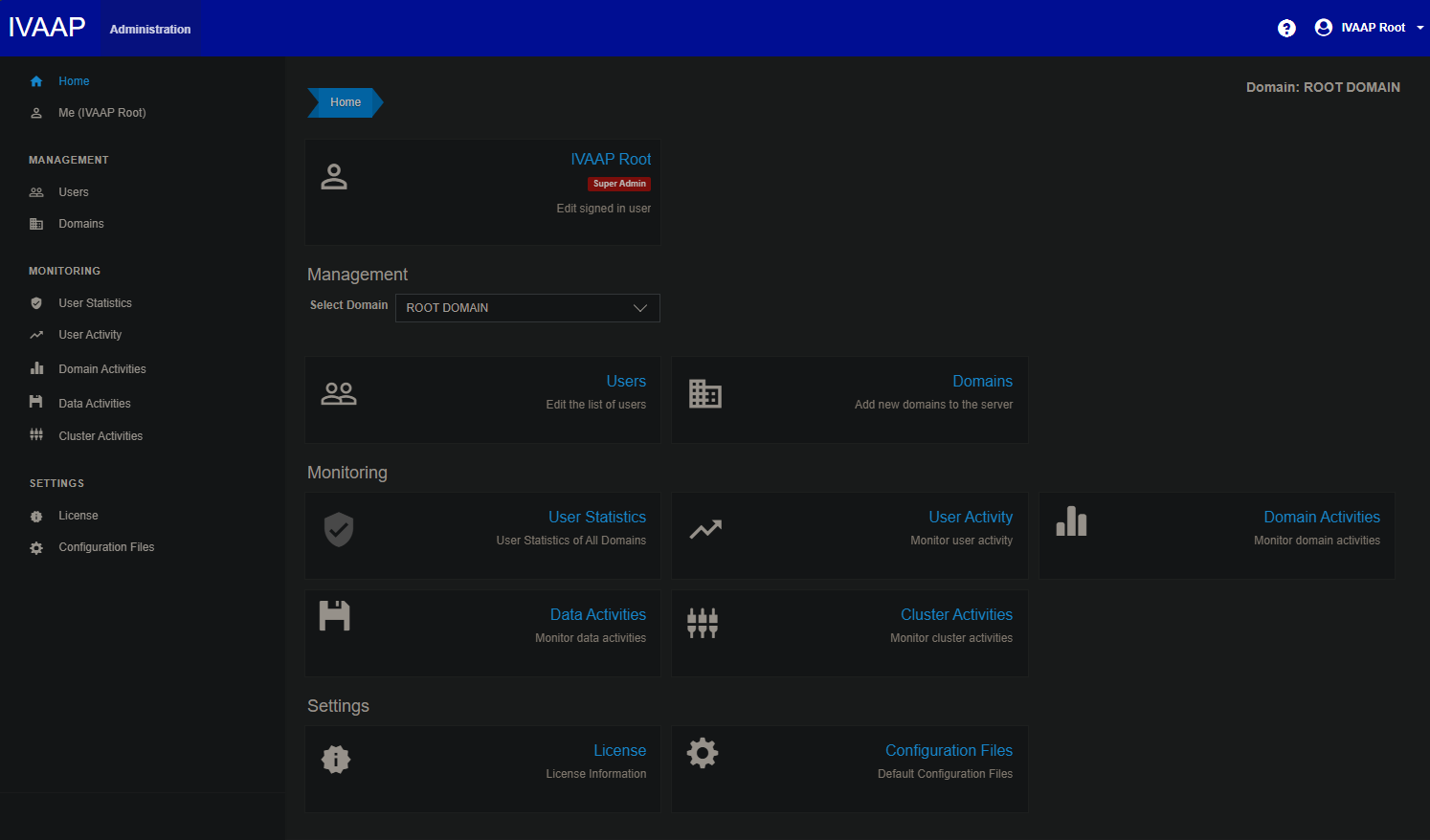
Confirm IVAAP is up, then log in with the super-admin credentials printed at the end of ivaap install. These credentials can also be found in the file /opt/ivaap/.installer/root_pw.txt that is created during deployment in case the credentials were not captured from the deploy installation output. This file should be deleted once credentials are modified, or once the deployer has properly stored them.
SUPER ADMIN CREDENTIALS
  Username:  ivaaproot@int.com
  Password:  curedtaxisextol3

REGULAR ADMIN CREDENTIALS
  Username:  DefaultAdmin
  Password:  plainwordshere12
The super admin (ivaaproot@int.com) is for administration only — use /admin, not the standard dashboard viewer. DefaultAdmin is the regular admin login for the dashboard.
Next Steps
IVAAP is now running with HTTP and local authentication. Continue with Post-Deployment Advanced Configuration for TLS, external authentication, connector changes, and links to platform-specific tuning guides.